
Settings
Account
- Change avatar and username: Update your display avatar and name in LCC Studio.
- Change account binding information: Modify the phone number or email address bound to your account.
- Change password: Supports changing the account password.
- Authorization code: Supports redeeming authorization codes to unlock or upgrade permissions.
- Delete account: You can delete your account. After deletion, the account will no longer be able to log in to LCC, and all related data will be cleared.
Advanced
Displays additional professional features of LCC. View feature details and configure related parameters.
General
- Project Path: Configure the storage path for LCC reconstruction project data to better organize and manage your project files.
Note: Set LCC project path: Before starting data reconstruction with LCC Studio, it is strongly recommended that you first set the project storage path. Separate the LCC data storage location from the software installation directory, and set the storage path on a solid-state drive (SSD). This can significantly improve data generation and processing efficiency.
- Capture Data Backup Path: The path for backing up capture data from external storage to local during reconstruction. Select a solid-state drive (SSD) for storage to speed up generation.
Device
View the current device and Sign Out of all devices.
About
Access the latest version installation link and tutorials, and directly provide feedback or improvement suggestions to the LCC team to help optimize the software experience.
Language
Supports switching between different languages. Currently available language options include Simplified Chinese, Traditional Chinese, English, Japanese, Italian, German, and Spanish.
Note: Language switching: If you change the language during editing or viewing, you need to re-enter the space for the settings to take effect.
Redeem Authorization Code
Redeem an authorization code at Settings - Account - Authorization Code - "Redeem Authorization Code", or in the permission card in the upper right corner of the interface, to unlock or upgrade permissions.
Account Information
In the upper right corner of the LCC Studio interface, account and permission information is displayed intuitively. Click to open the permission card page; click Settings to quickly navigate to account settings.
Permission Card: The permission card displays your LCC permission version, the features activated under that version, and feature expiration dates.
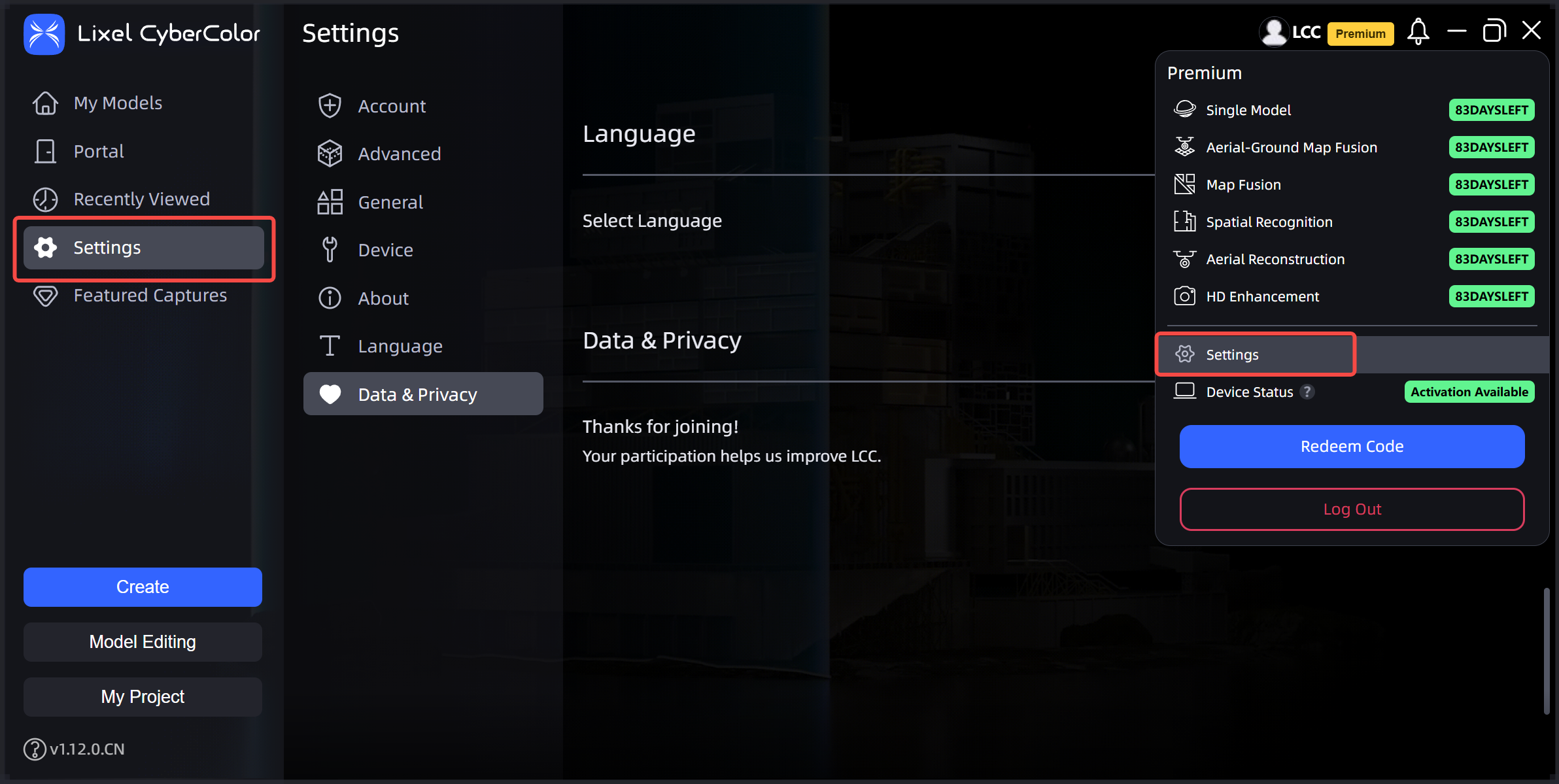
Account Information / Settings
Redemption Steps
- Click the "Redeem Authorization Code" button to open the dialog box.
- Copy and paste the LCC authorization code you have obtained, then click the "Redeem" button.
- Confirm whether the permissions corresponding to this authorization code are correct. Click "View Benefits Details" to see the features and duration this authorization code can activate. If correct, click "Confirm Redemption"; if incorrect, you can go back and re-enter.
- After redeeming, the permission card in the upper right corner updates with the new permissions.
Announcements
Important notices and system answers: through the announcements feature, we share the latest important information about LCC, including software updates, feature changes, and systematic answers to common questions. This helps you stay informed about the latest developments and provides timely guidance.
Help and Version Info
Find help and version information in the lower left corner of the LCC Studio interface. Click to open the user manual viewing page.
- User Manual: Click "Help" to open the user manual for the current version. This provides detailed operation guides and FAQ answers to help you quickly master the software.
- Software Version Info: Displays the current LCC Studio software version information.
