
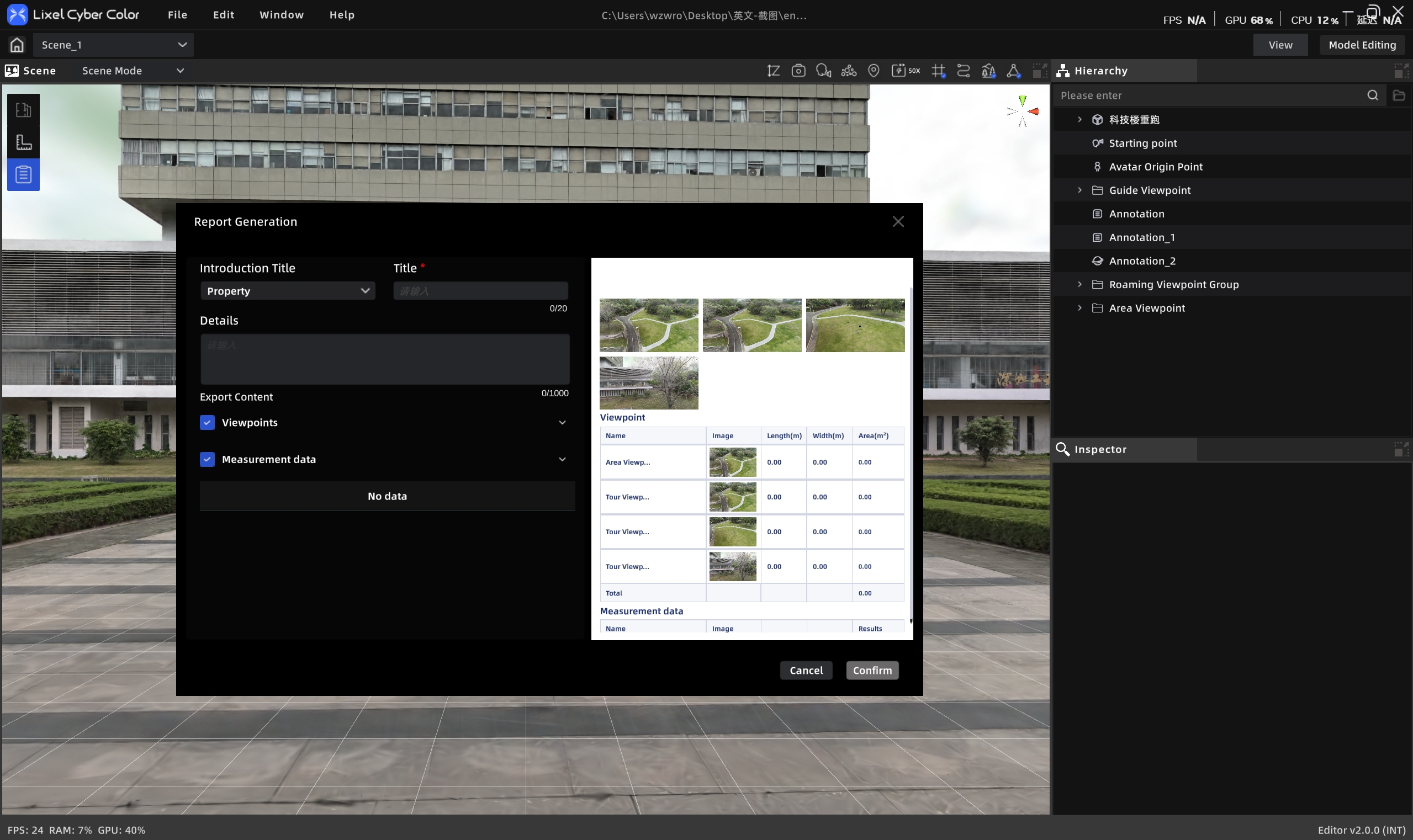
The Scene Report tool organizes the 3D Layout and tour content from the current project using a template, and generates a report that can be viewed and published.
- Supports local export in JPEG and PDF formats
- Optionally includes viewpoint and measurement data
Scene Report
Workflow
Create a Scene Report
- Click the Scene Report entry
- The system shows a data scope selection screen. Check the content to include:
- Title (required, ≤50 characters)
- Details (≤1000 characters)
- 3D Layout (if available)
- Viewpoint data
- Measurement data
- After confirming, click "Start Generating"
- The system shows generation progress (e.g., "3/10 viewpoints completed, ~20 seconds remaining")
- After generation, the report editing panel opens
Note: The button is grayed out during generation; it cannot be triggered again. If you exit during generation, a confirmation prompt appears: "Generation in progress — exiting will cancel."
Managing Scene Reports
- View & Edit: Click the scene report entry in the asset list; preview and edit in the properties panel
- Export: Export from the properties panel in JPEG or PDF format
- Delete: Select the report entry in the asset list and press
Deleteor right-click → Delete - Update after publish: After the project is published, use Update to sync the latest report to Preview Mode
